
InstructorLane for the instructor. LearnerLane for the pupil.
The apps share bookings, messages and approved progress while keeping private instructor records and controls where they belong.
Run the working day from phone, tablet or computer.
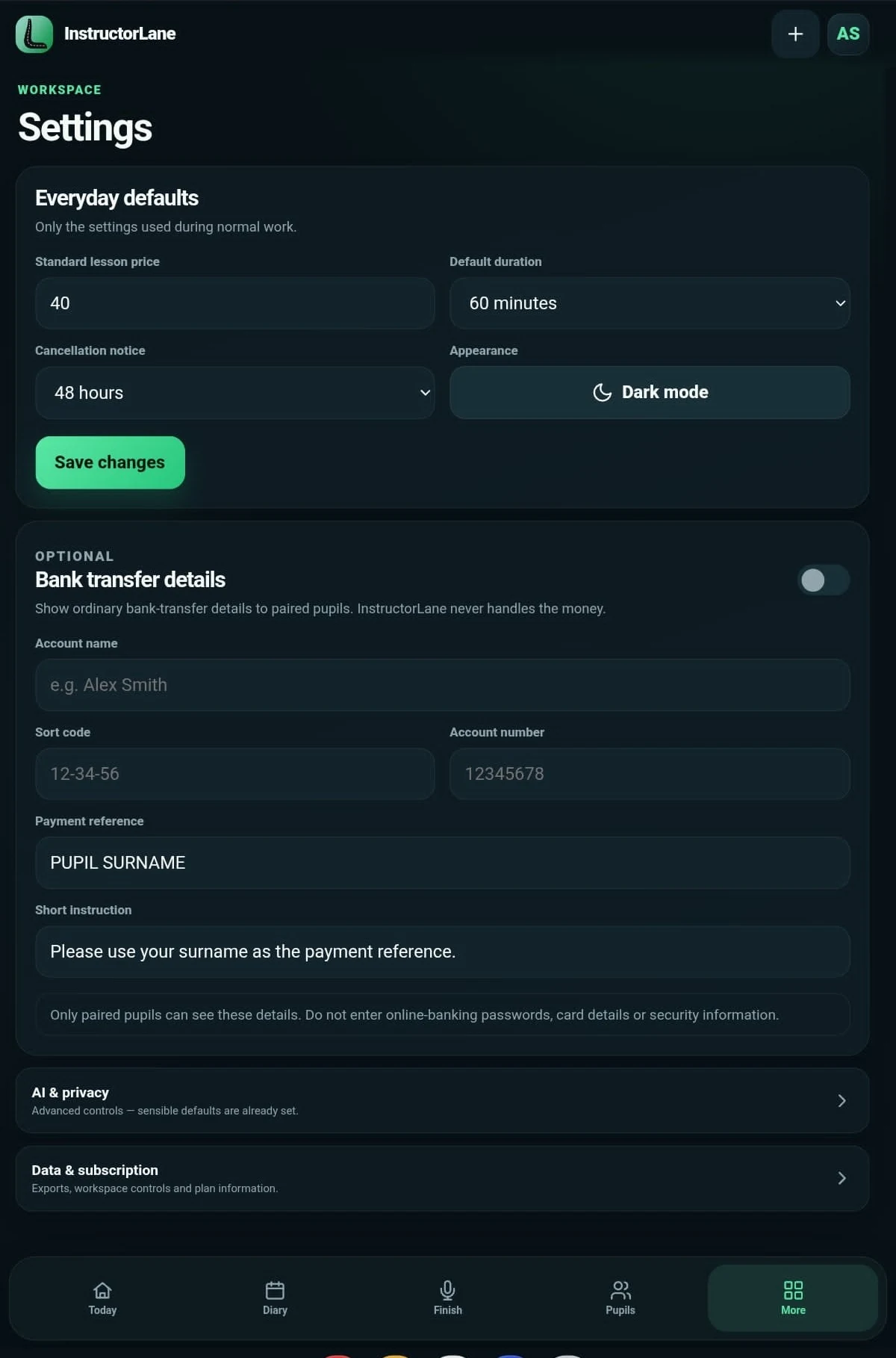
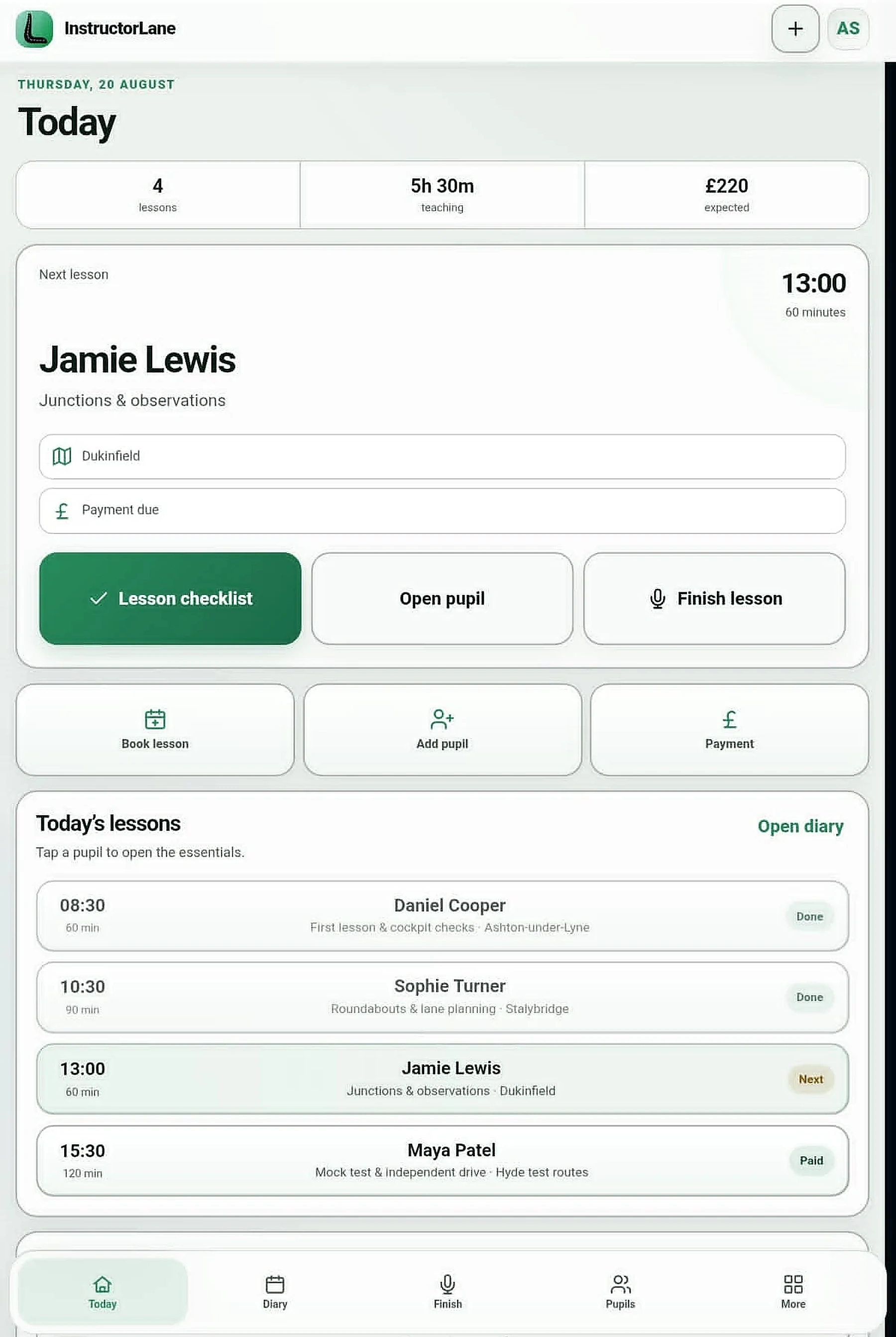
Manage lessons, pupils, availability, progress, money and reports from the same account. The layout adapts to the screen instead of reducing the product to a cut-down mobile view.
- Responsive day-to-day workspace
- Cloud-synchronised records
- Native App Store and Google Play releases
- Dark appearance by default

Give pupils a clearly separate app.
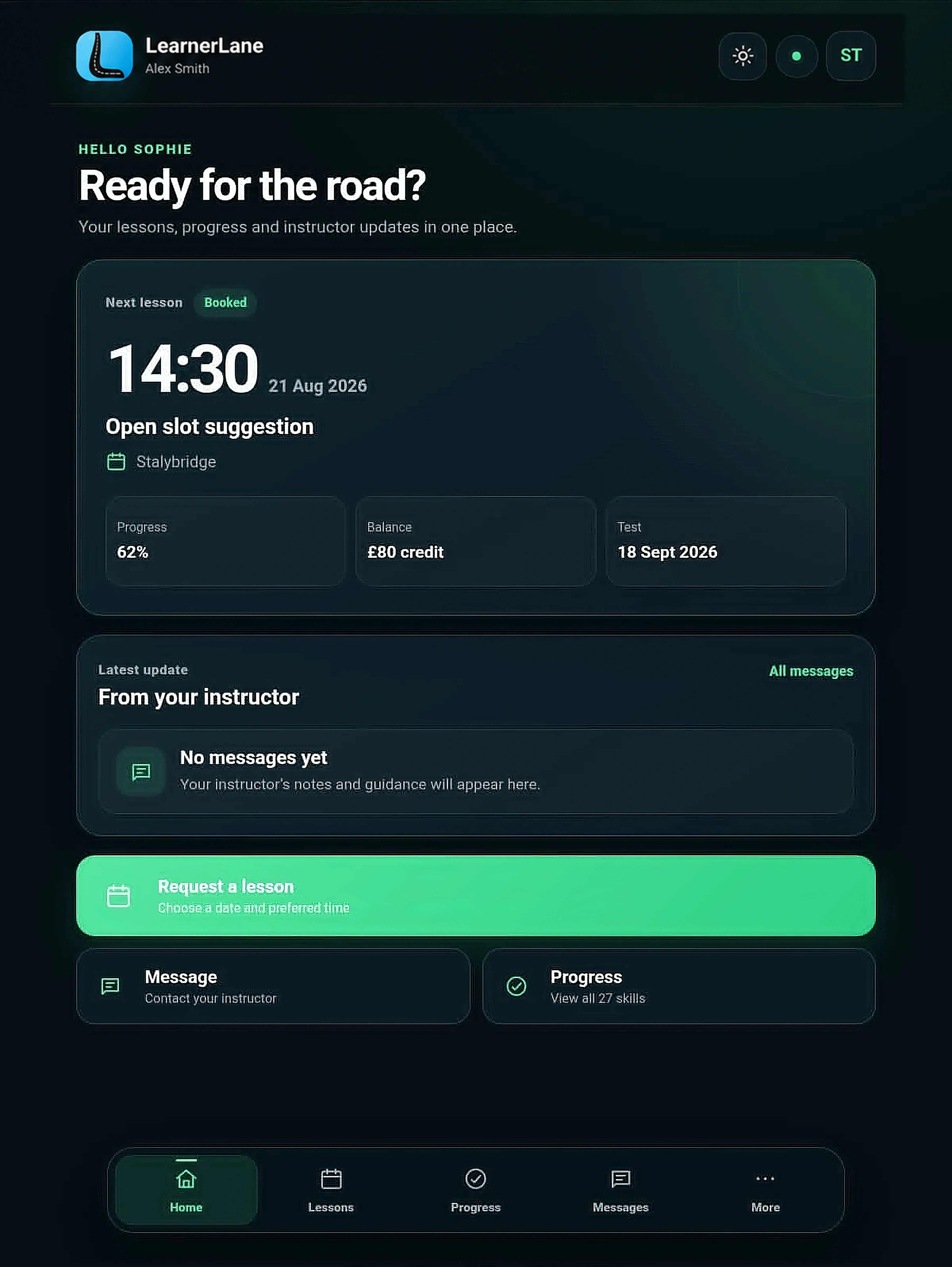
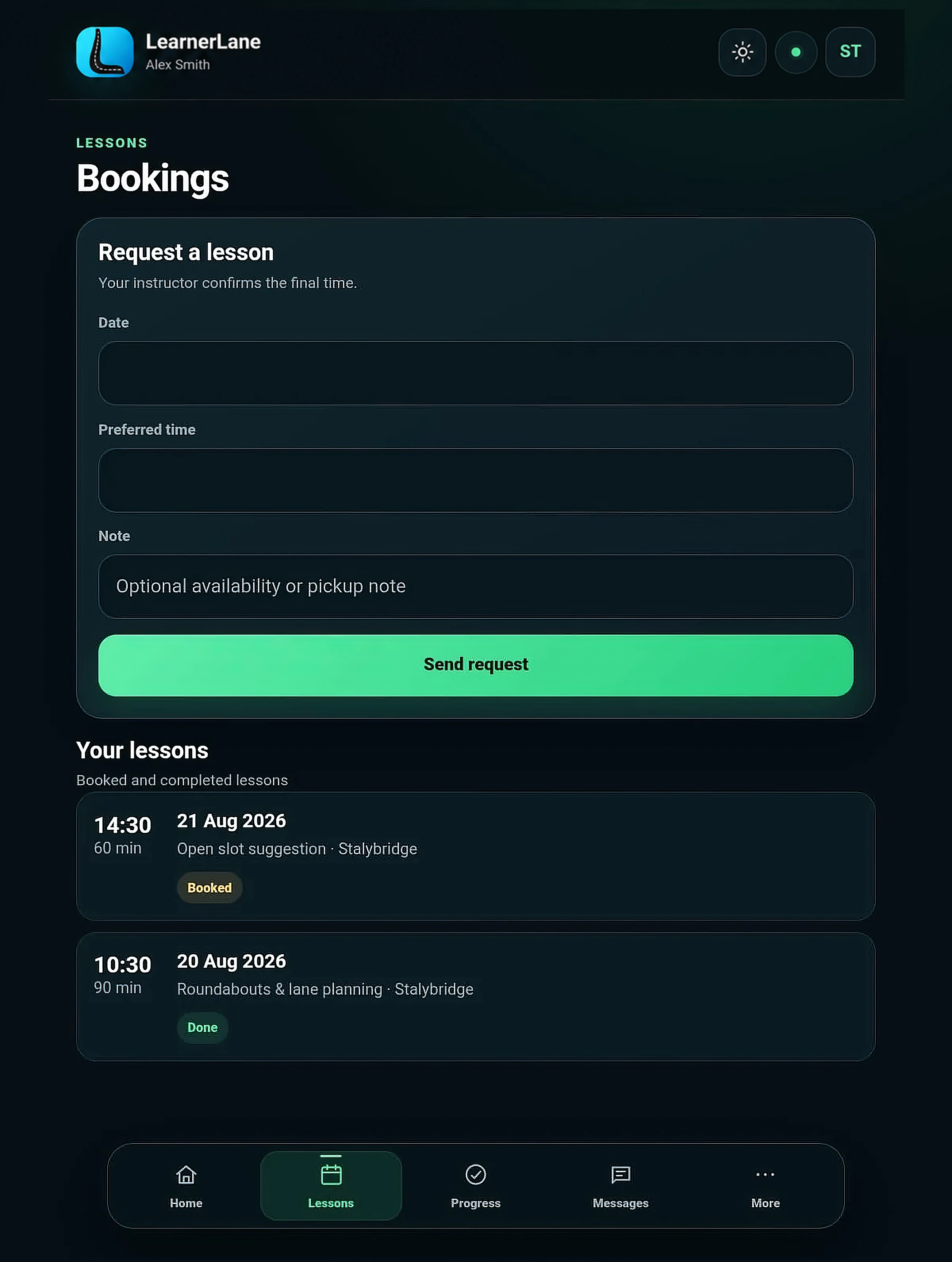
LearnerLane is limited to the tasks a learner needs: request a lesson, review bookings, read messages and see progress shared by the instructor. Its own name and icon prevent confusion with the InstructorLane workspace.
- Private connection to one instructor record
- No access to instructor-only notes
- Clear next lesson and current focus
- Booking history and messages
- Confidential reporting and block controls
- Confidential reporting and block controls
Dark by default. Light when you prefer it.
The website uses the default dark profile throughout. This is the only section showing the optional light appearance so the choice is clear without mixing styles elsewhere.
Unlimited pupil connections are included.
The subscription belongs to one instructor account, but the number of pupils connected to that instructor is not priced in tiers. Add, pair and manage the pupil records needed for your own instruction business without a per-pupil charge.
- One private record and connection per pupil
- No separate pupil subscription
- No paid pupil-count upgrade
- Pupil access remains controlled by the instructor
Included with monthly and annual subscriptions.
The right app for each role.
InstructorLane is the instructor workspace; LearnerLane is the pupil companion. Both apps are available now on the App Store and Google Play.